
Oklahoma Digital ID

Now you can choose to add your Oklahoma Driver License or State ID to your digital wallet on your mobile device.
This lets you present it easily, privately and securely at TSA and other participating locations.
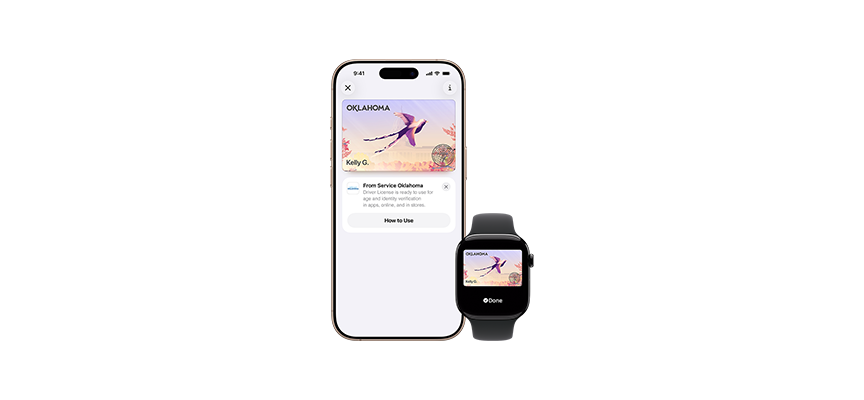
Apple Wallet
Now you can add your Oklahoma Driver License or State ID to Apple Wallet on iPhone and Apple Watch.
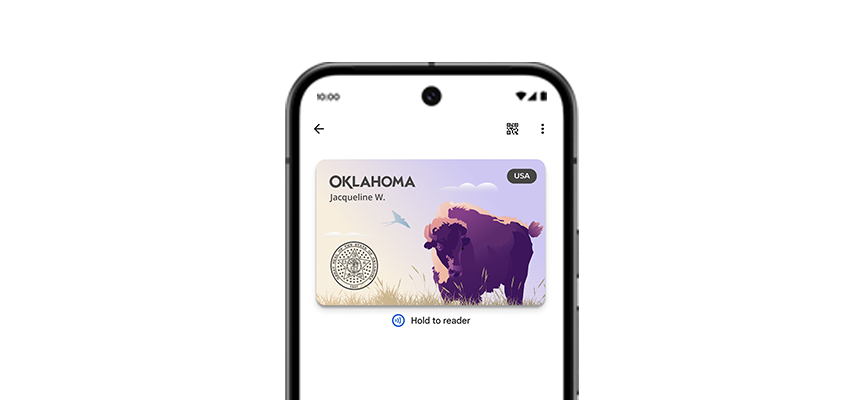
Google Wallet
Google Wallet is a secure way to carry your ID on your phone.
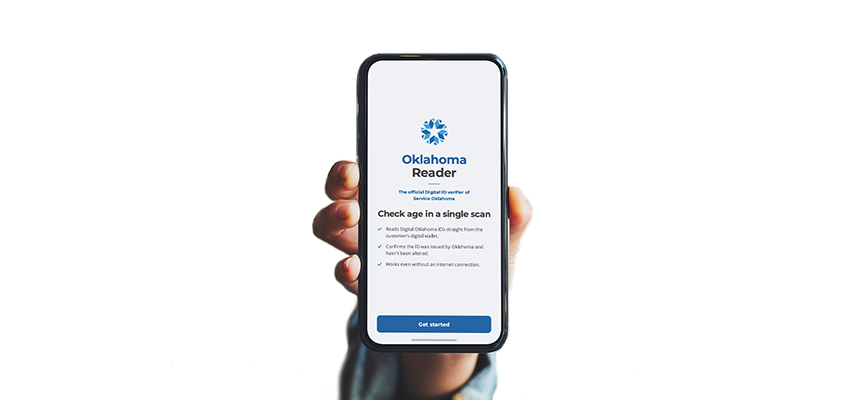
What is a Digital ID?
Oklahoma Digital ID is a secure, digital version of your Driver License or State ID that gives you control over your information on your smart device. The Digital ID is free and optional for Oklahomans to use.
Your Digital ID works alongside your physical Driver License or State ID. Be sure to keep your physical Driver License or ID with you at all times.
- Safe, Private and Secure
- Easy to Get
- Simple to Use
Oklahoma Digital ID keeps your personal information private and secure.
Show only the information needed, like age or identity verification
Protected by on-device encryption and biometric authentication
Delete or temporarily deactivate your Digital ID through Service Oklahoma's Navigate website or your phone's tracking app
View more details in the Frequently Asked Questions.

You can get an Oklahoma Digital ID if:


- You are 18 or older


- You have a valid, physical Oklahoma Driver License (Class D or CDL) or State ID


- You have a compatible device

To present your Oklahoma Digital ID:


- Open your Digital ID


- Hold your device near the identity reader


- Review and approve the information that will be shared
Manage Your Digital ID in Navigate
Navigate is your one-stop-shop for handling your Driver License, State ID and Motor Vehicle needs.
Now, you can also temporarily deactivate or permanently delete your Digital ID in Navigate.

Navigate Digital ID Tutorials
- Create or log into your Navigate account.
- Select "Confirm" under the "Digital ID" section of your dashboard.
- Follow the prompts on the screen, and enter your Confirmation Code when prompted.

Users with Digital ID in Apple Wallet can temporarily deactivate and reactivate their Digital ID in Navigate.
- Log into your Navigate account.
- If you have not already, add your Driver License to your Navigate account.
- Select "Digital ID" to view and manage your devices' Digital IDs.
- Select "Temporarily Deactivate" next to the device you want to pause.
- Follow the prompts on the screen.

Users with Digital ID in Apple Wallet can temporarily deactivate and reactivate their Digital ID in Navigate.
- Log into your Navigate account.
- Select "Digital ID" to view and manage your devices' Digital IDs.
- Select "Reactivate This Device" next to the device you want to reactivate.
- Follow the prompts on the screen.

- Log into your Navigate account.
- If you have not already, add your Driver License to your Navigate account.
- Select "Digital ID" to view and manage your devices' Digital IDs.
- Select "Delete from Device" next to the device you want to pause.
- Follow the prompts on the screen.

Locations Accepting Oklahoma Digital ID

Oklahoma ID in Apple Wallet
Now you can add your Oklahoma Driver License or State ID to Apple Wallet on iPhone and Apple Watch.
So you can present it easily and securely in person, online or in app at select businesses and organizations.

Oklahoma ID in Google Wallet
Google Wallet lets you save a digital version of your Driver License or State ID right on your phone for reliable, more secure access.


Frequently Asked Questions
Jump to FAQs
General
Adding an Oklahoma Digital ID card to your phone or other device is all about security, convenience and ease of use.
With your Digital ID, your smart device is the only thing you need to provide for identification purposes at select locations. Oklahoma Digital ID allows you to show ONLY the information that needs to be seen.
Oklahoma Digital IDs can be used at certain venues around the state, including sports venues, airports, restaurants and other locations.
View which locations have confirmed they accept Oklahoma Digital ID on the map above.
Yes, customers should still carry their physical Driver License or State ID.
No, Oklahoma offers Digital IDs for free to anyone 18 or older with a valid, physical license or State ID.
You do not need to make any changes to your Digital ID when you renew, replace or make changes to your physical Driver License or State ID.
The information will be automatically updated within 24 hours of the changes being made with Service Oklahoma.
No. The Oklahoma Digital ID is separate from the former Oklahoma Mobile ID app, which was decommissioned in 2024. Credentials from the former app will not transfer. Eligible customers who want to use the Oklahoma Digital ID must complete a new enrollment through the wallet app on their device.
Security and Privacy
Yes, Oklahoma Digital ID uses privacy and security features that make it very safe.
- Unlike physical cards, Oklahoma Digital ID presents only the information needed for the interaction, which you review and authorize before sharing with the business.
- Oklahoma Digital ID is presented digitally through encrypted communication directly between the device and the identity reader.
- Biometric authentication ensures that only the person who added the Digital ID to the device can view or present their Driver License or State ID.
The Oklahoma Digital ID will only show what is necessary, like your age or identity verification. You will be able to confirm what information is being shown before you share it.
No, information about usage — including where, when and what personal information you share — is encrypted and stored only on your device.
Your Digital ID is protected with biometric authentication and can’t be accessed without unlocking your phone.
If you have misplaced your phone:
You can temporarily deactivate your Digital ID on Navigate and reactivate once you have found it.
If you have fully lost your phone:
You can delete your Digital ID on Navigate and replace your Digital ID once you have a new phone.
View Manage Your Digital ID in Navigate above for more information.
You can also contact Service Oklahoma by phone or visit a location in person to get assistance with locking or deleting your Digital ID.
Oklahoma Digital IDs use the AAMVA Digital Trust Service with ISO standards for mDLS.
Download IACA Certificate.


