
OMMA MedPortal

Welcome to the OMMA MedPortal webpage! Here you’ll find the latest portal updates and resources, like the OMMA MedPortal User Guide and the Delegating Access Guide. The guide will help you navigate the portal and perform primary functions. Note: Please continue using OMMA Verify as you normally would—but you’ll need to use the new link: OMMA Verify.
Visit the portal: OMMA MedPortal
As Executive Director Berry said in a previous message, with the new system, our agency will be better equipped with reliable data to measure our performance, identify areas of risk and strategically allocate our resources for maximum impact on public health and safety while serving Oklahomans efficiently and effectively.
Transition Details
If you fully submitted an application in Thentia by Oct. 14 at 11:59 p.m., the application will be transferred to the OMMA MedPortal and will appear in your dashboard on Oct. 28.
If you fully submitted an application in Thentia between Oct. 15 and Oct. 28 at 7 a.m., the application will be transferred to the OMMA MedPortal and will appear in your dashboard on Oct. 30 at 8 a.m.
If you have a pending application in Thential that isn’t submitted by Oct. 28 at 7 a.m., you’ll have to start a new application in the OMMA MedPortal.
Logging In For The First Time (All License Types):
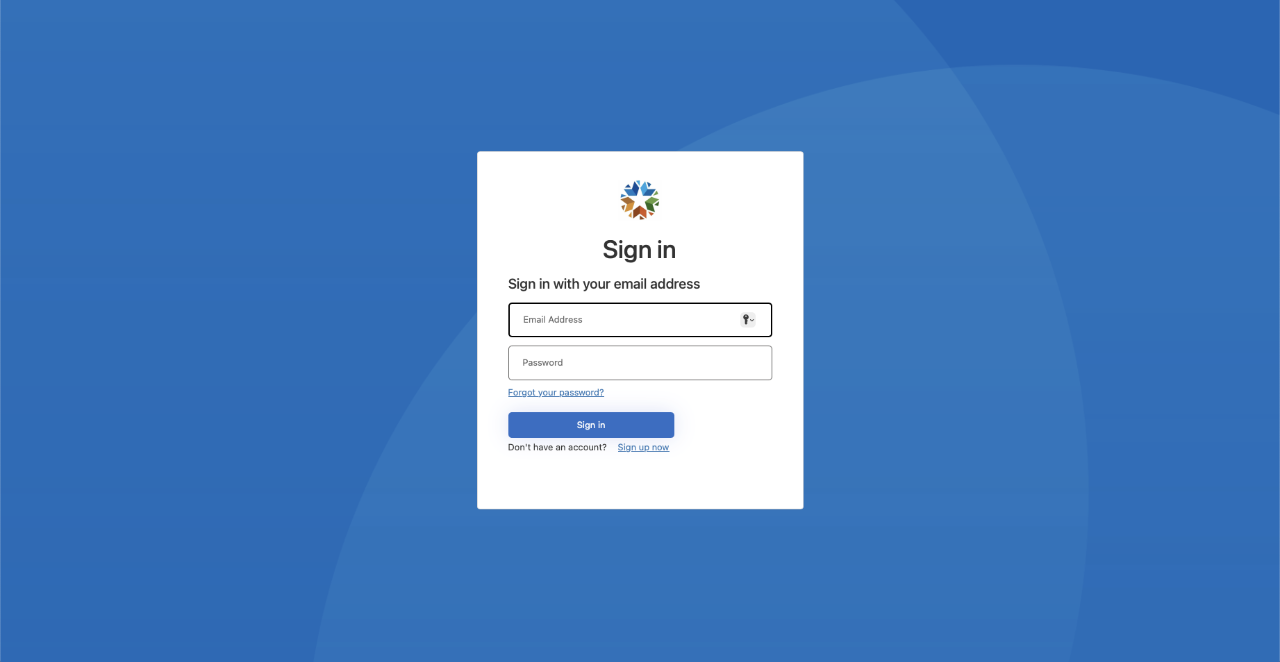
1. When a user logs in for the first time, they will be taken directly to their OMMA MedPortal dashboard if the information provided in the current system is correct and verifiable by OMMA. If the information isn’t able to be verified, the user will be taken to the OMMA Licensing Portal Claim page. Then, the user will select the appropriate option.

2. If the user selects the first option, “Yes, I have an active or past license, or I have submitted an application,” then the user will be directed to the next page to select the license or application type.

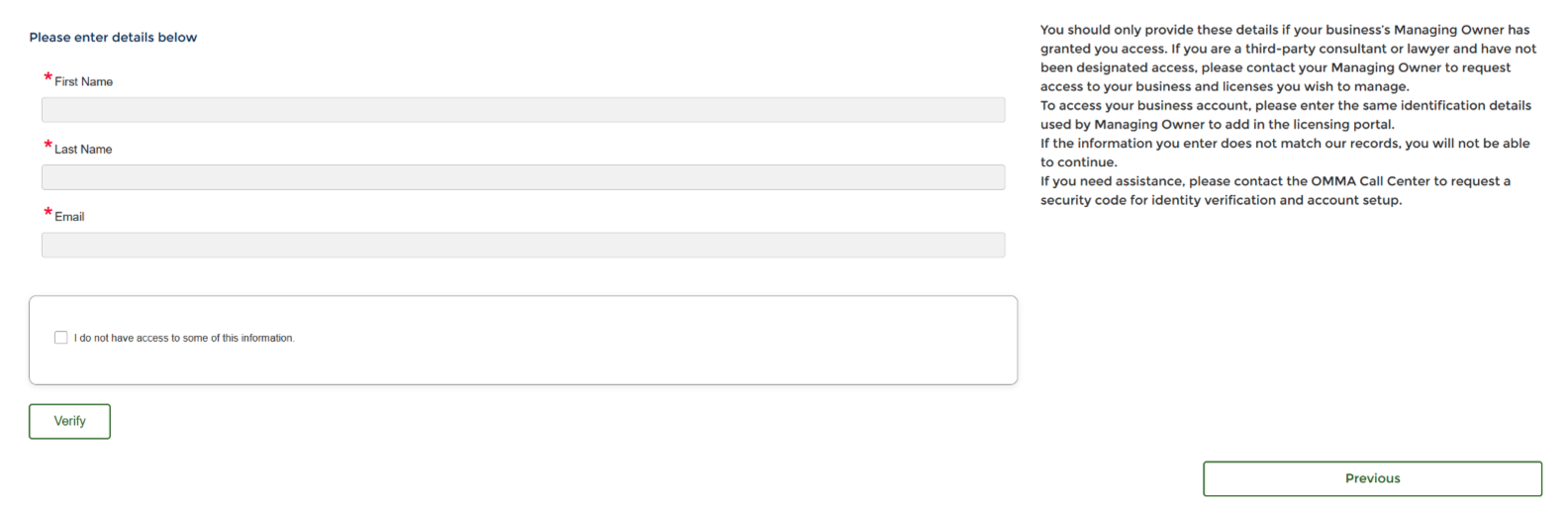
3. If the user selects the second option, “Yes, I have been granted access to the business account as a third-party consultant, employee or lawyer,” the user will be directed to a page to input their first and last name and email.
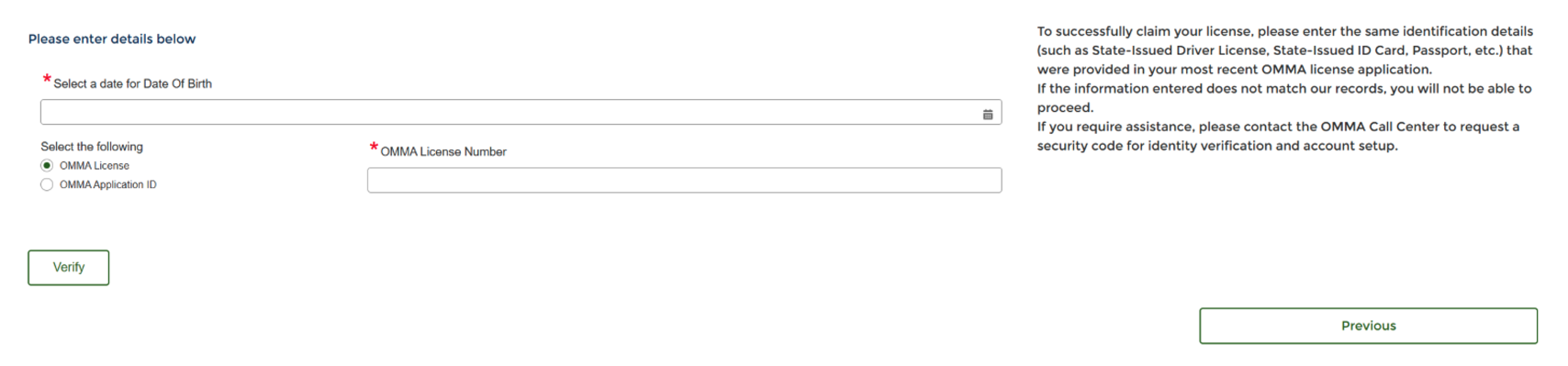
4. If the user selects Patient or Caregiver License, the user will need to input their date of birth and OMMA LicenseNumber or OMMA Application ID. The right side of the page will display instructions and a disclaimer.
5. If the user selects Business, the user will need to input their date of birth and OMMA License Number or OMMA Application ID. The right side of the page will display instructions and a disclaimer.

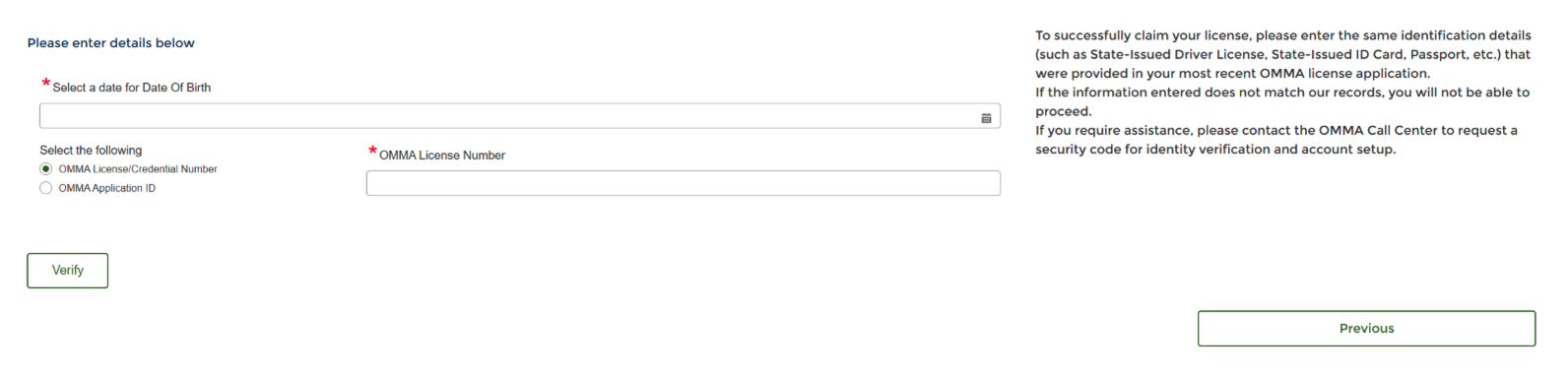
6. If the user selects Employee Credential, the user will need to input their date of birth and OMMA License/Credential Number or OMMA Application ID. The right side of the page will display instructions and a disclaimer.
7. If the user fails to input the correct information three times, the user will be presented with the option to select, “I do not have access to some of this information.” Once selected, the user will have a box to input the security code and verify.
8. Once verified, the user will be directed to the main portal selection page. If the user selects the third option, “No, I have never held a license or submitted an application with OMMA or been granted access to the business account as a third-party consultant, employee or lawyer,” the user will be directed to the main portal selection page.